

.png?width=1300&name=AI_V2%20(1).png)
21.7.2026
Marcin Janik
 Share this
Key changes in version 2.1.15
- Browser SDK 2 updated from v2.11.8 to v2.42.5
- Added support for:
- Events Autocapture configuration
- Session Replay plugin and configuration
- Guides and Surveys plugin and configuration
- Configuration option suggestions in the UI
- UI guides and configuration hints for Browser SDK 2
For more on the extension, including a video tutorial, see Amplitude: Launch Extension.
Browser SDK 2 update
The Browser SDK 2 included with the extension has been updated to version 2.42.5.
Browser SDK 1 and the Marketing SDK remain supported. To use a different SDK version or provide a custom SDK build, navigate to Extensions > Amplitude V2 > Configuration in Adobe Tags. From there, update the SDK version or provide custom code.
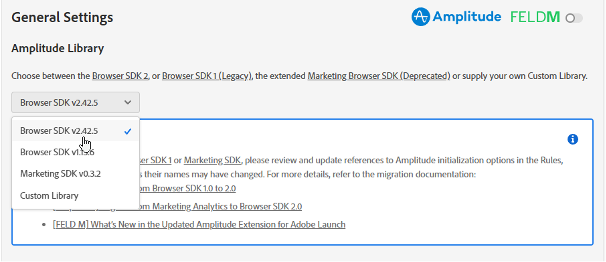
Demo: How to install the Amplitude extension for Adobe Experience Platform
Autocapture configuration
The Initialization action now provides multiple ways to configure Autocapture.
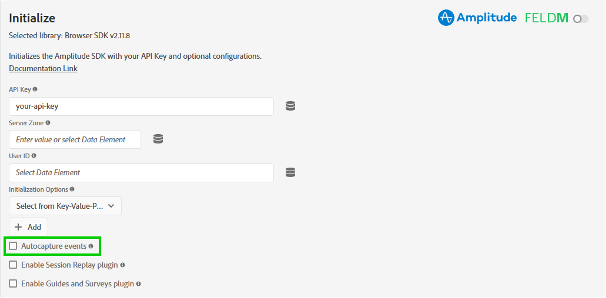
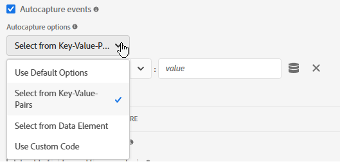
Once you’ve enabled Autocapture, you can configure it using:
- Key-value pairs
- Data element
- Custom code
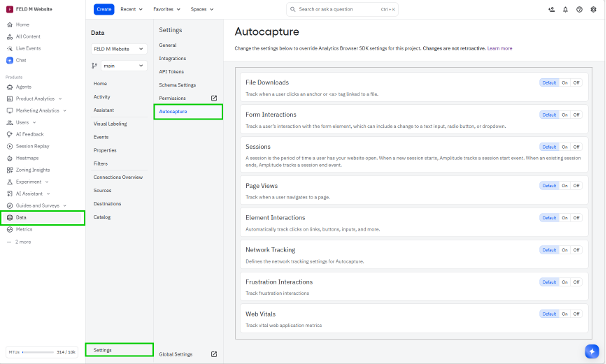
To simplify implementation, Autocapture can also be configured directly in the Amplitude UI. Navigate to Data > Settings > Autocapture.
Note: Settings configured in the Amplitude UI override settings configured in the extension.
The accordion menu serves as a guide to Amplitude’s configuration. You can collapse it to save space.
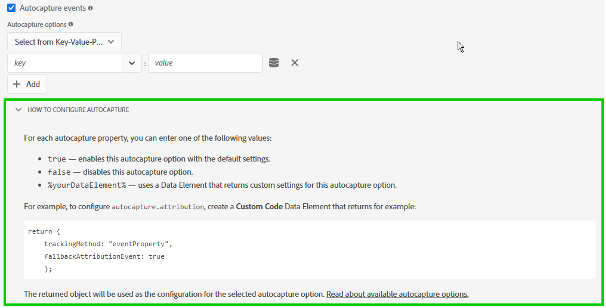
Note: Existing Autocapture configurations created using the previous Initialization options will continue to work.
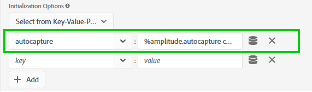
If you configure Autocapture using the new UI fields, those settings will override any legacy Autocapture configuration.
Session Replay plugin
The Session Replay plugin can be configured in a similar way to Autocapture, by using:
- Key-value pairs
- Data element
- Custom code
With configuration settings being suggested to a user.
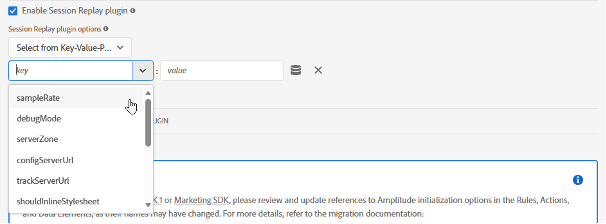
This feature also has configuration suggestions in the accordion.
Guides and Surveys plugin
Guides and Surveys need to be configured in the Amplitude UI first. Create a survey or guide in your project, then configure the plugin.
The plugin can be configured in a similar way to Autocapture, by using:
- Key-value pairs
- Data element
- Custom code
With configuration settings being suggested to a user.
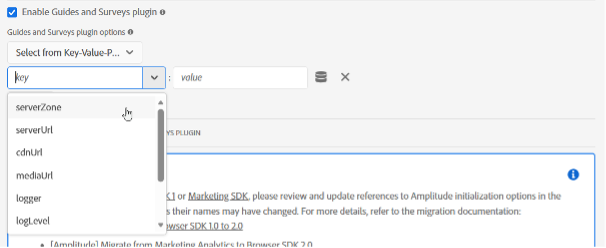
We'd love to hear from you
We hope these new updates make your experience with the extension even better. Your thoughts help us improve, so please don’t hesitate to reach out. Whether you have feedback, questions, or just want to share how you’re using the new features, drop us a line at launch-extension.support@feld-m.de.
Looking for more than just an extension?
As analytics experts, the broader FELD M team is here to help you maximize your data. If you're trying to decide on the right analytics tool for your business, need guidance implementing Amplitude, or want to optimize your data strategy, we’d love to chat. Reach out to our team to find out how we can support your growth!